
Everyday PDF tasks
Why Word to PDF changes your formatting
Check fonts, tables, images and page breaks when converting DOCX files in your browser.
RedactNinja guide. Updated 23 September 2026.
A Word document contains layout instructions, not a fixed picture of each page. When a different renderer interprets those instructions, line wrapping and pagination can change. The browser converter does not run Microsoft Word.
What our worked example showed
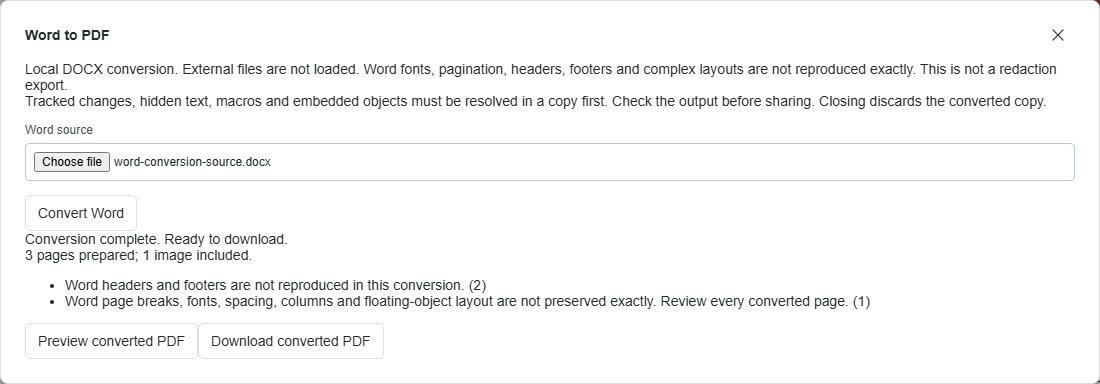
We converted a fictional DOCX test document in the current PDF workspace. The result contained three pages and one image. The converter reported that headers and footers were not reproduced, and warned about page breaks, fonts, spacing, columns and floating objects. These are useful warnings, not a claim that the output matches Word.
Convert and inspect
- Open PDF tools and choose Word to PDF. Select a supported DOCX file and choose Convert Word.
- Read the result messages. You can download directly, but do not assume that an available download means the layout is identical.
- Use Preview converted PDF or open the download beside your original.
- Compare the beginning and end of every page. Check that no table row, image or sentence has disappeared between pages.
Where to look first
Start with the title page, headers and footers, tables that span pages, numbered lists, columns and images placed alongside text. A substituted font can change line lengths, which can move content onto another page. Check page numbers and references after any pagination change.
Tracked changes, hidden text, macros and embedded objects should be resolved in a copy using an appropriate source application. Do not treat a conversion as a reliable way to strip confidential material or decide which revision is final.
When another route is better
If the exact Office layout is essential, export to PDF from the application that created the document, then use RedactNinja to organise or edit that PDF. Microsoft provides instructions for PDF export from Office. Do not rename an older DOC file to DOCX: changing the extension does not convert its contents.
The example above is not a native desktop Word comparison. We have not established identical rendering for every document or font. Keep the source, and use a format and conversion route appropriate to the recipient's needs.